Add Terms & Conditions
- In the store's backend menu, under 【Online Store】-【Custom Page】, create a
Terms&Conditionspage (if this page does not exist). - In the Terms&Conditions page code editor, copy one of the following images or text codes and add it (refer to the corresponding links provided in the website's modification suggestions).
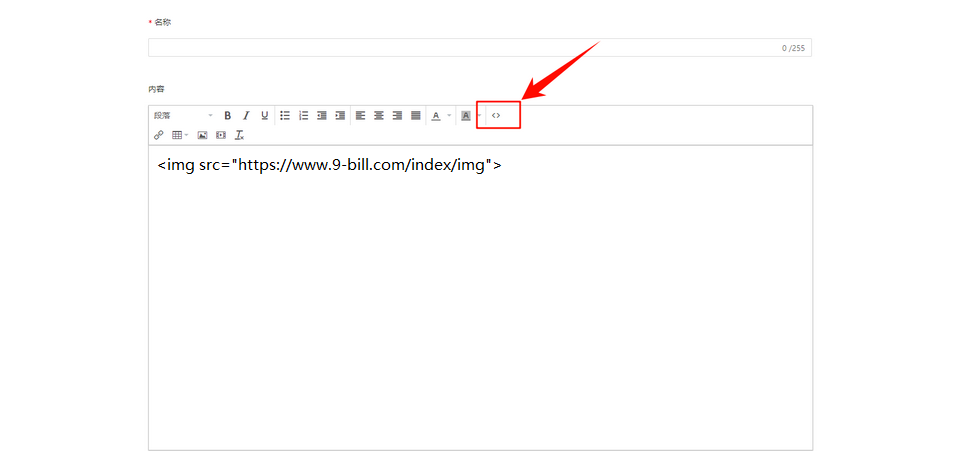
- Add image link
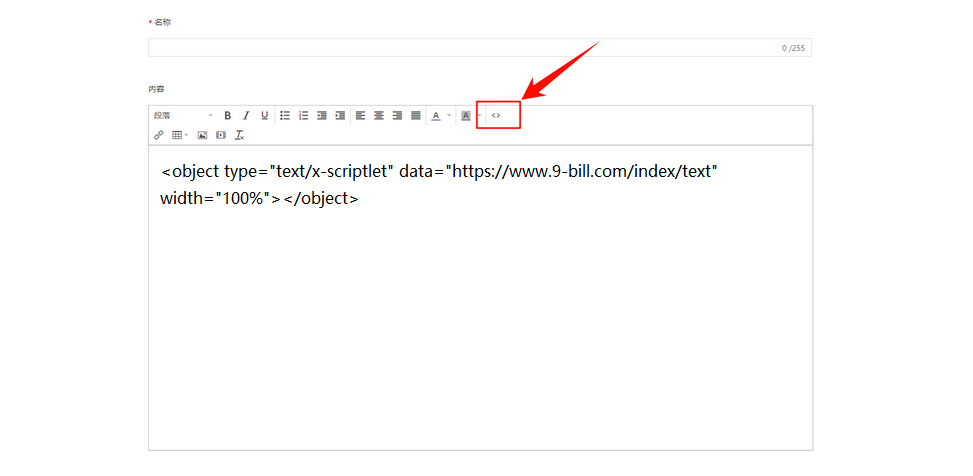
- Add text link
<img src="https://www.9-bill.com/index/img">
<object type="text/x-scriptlet" data="https://www.9-bill.com/index/text" width="100%"></object>
Add INTELLECTUAL PROPERTY RIGHTS
- In the store's backend menu, under 【Online Store】-【Custom Page】, create a
Terms&Conditionspage (if this page does not exist). - In the INTELLECTUAL PROPERTY RIGHTS page code editor, copy one of the following images or text codes and add it (refer to the corresponding links provided in the website's modification suggestions).
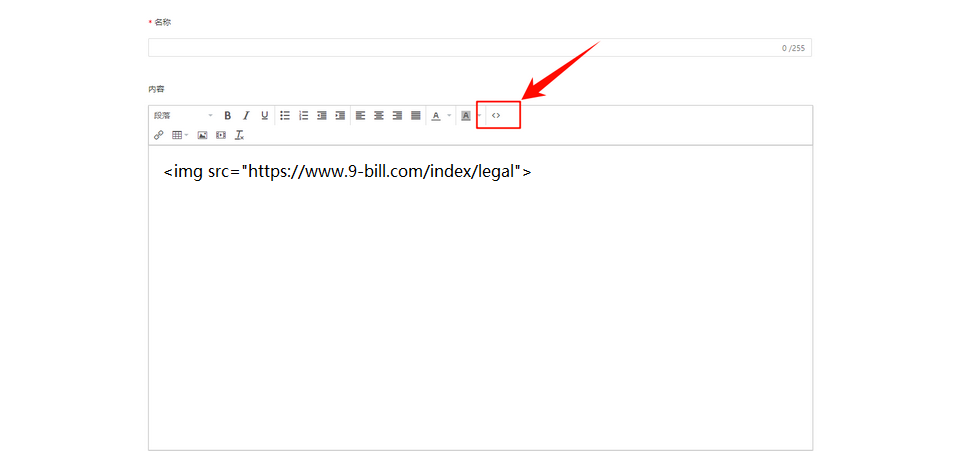
- Add image link
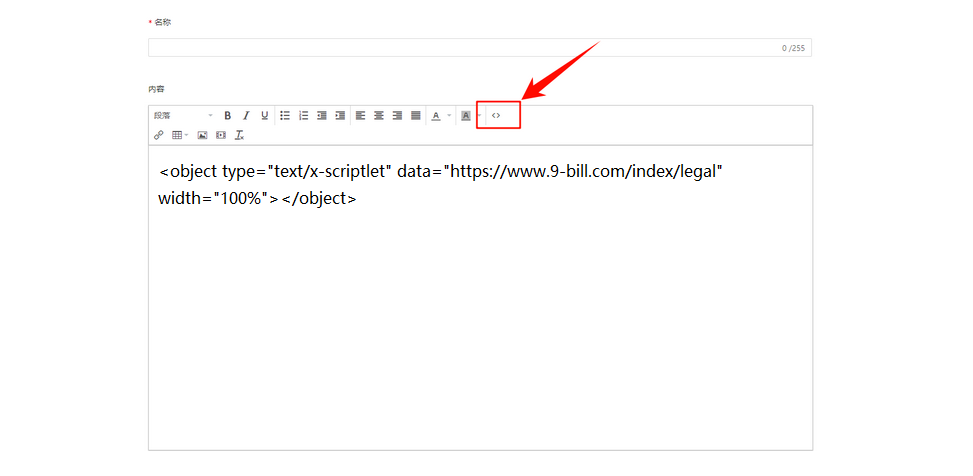
- Add text link
<img src="https://www.9-bill.com/index/legal">
<object type="text/x-scriptlet" data="https://www.9-bill.com/index/legal" width="100%"></object>
How to add the Terms and Conditions page to the website footer?
- In the store backend, go to [Online Store] - [Menu Navigation] - select to add a first-level menu or create a new menu.
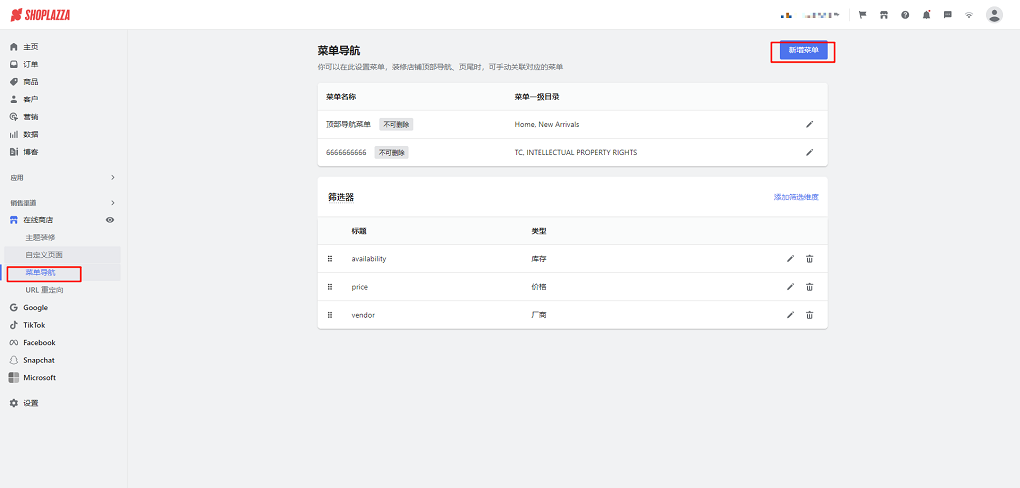
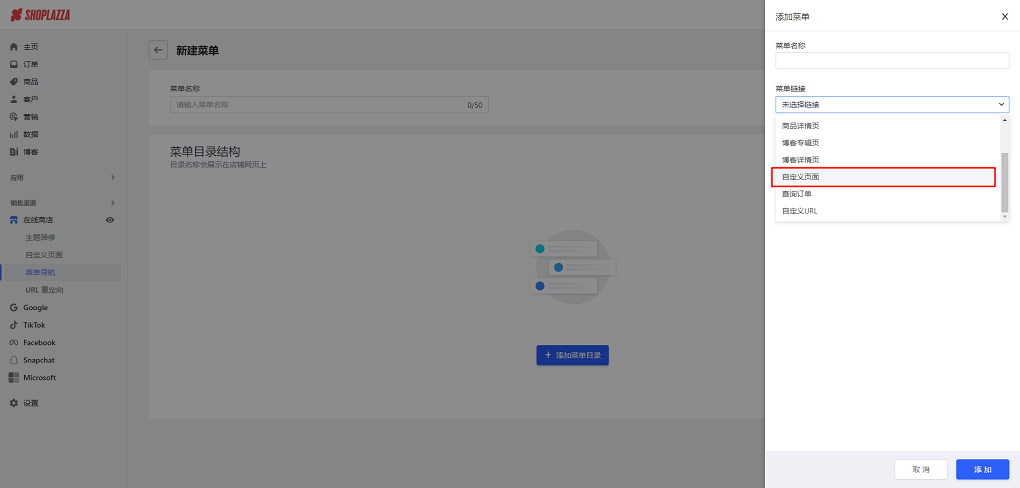
- Click on 【Add Menu Directory】- select 【Custom Page】- add a Terms & Conditions or INTELLECTUAL PROPERTY RIGHTS page.
Modification of payment logo at the bottom of the website
- In the store's backend menu, go to 【Online Store】-【Theme Decoration】-【Edit】 and enable the payment logo icon.
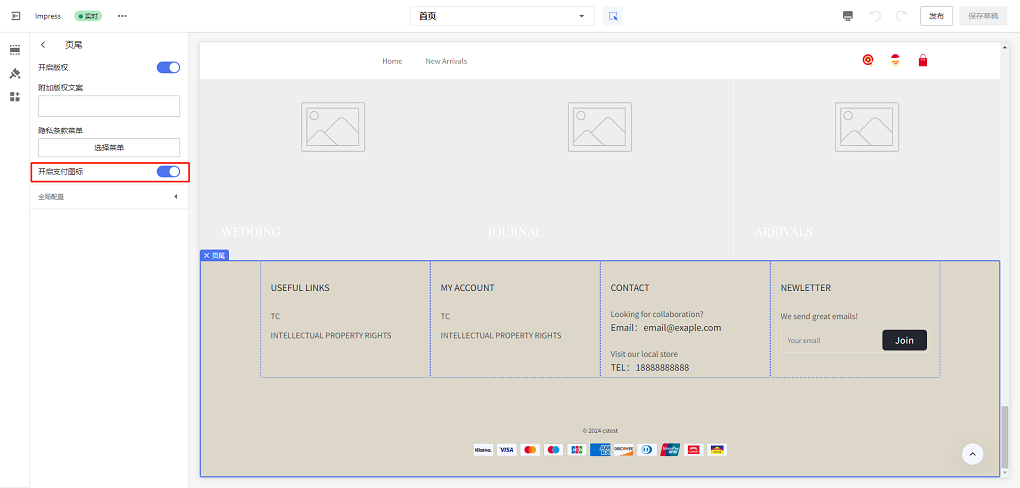
- If enabling the logo does not meet your requirements, please refer to the Shoplazza Help CenterCustom Addition of New Logo.